Take a little UW style wherever you go. From favorite campus views to playful illustrations, these wallpapers bring a touch of Wisconsin to your phone or tablet. Choose your favorite, download, and feel the Badger pride.
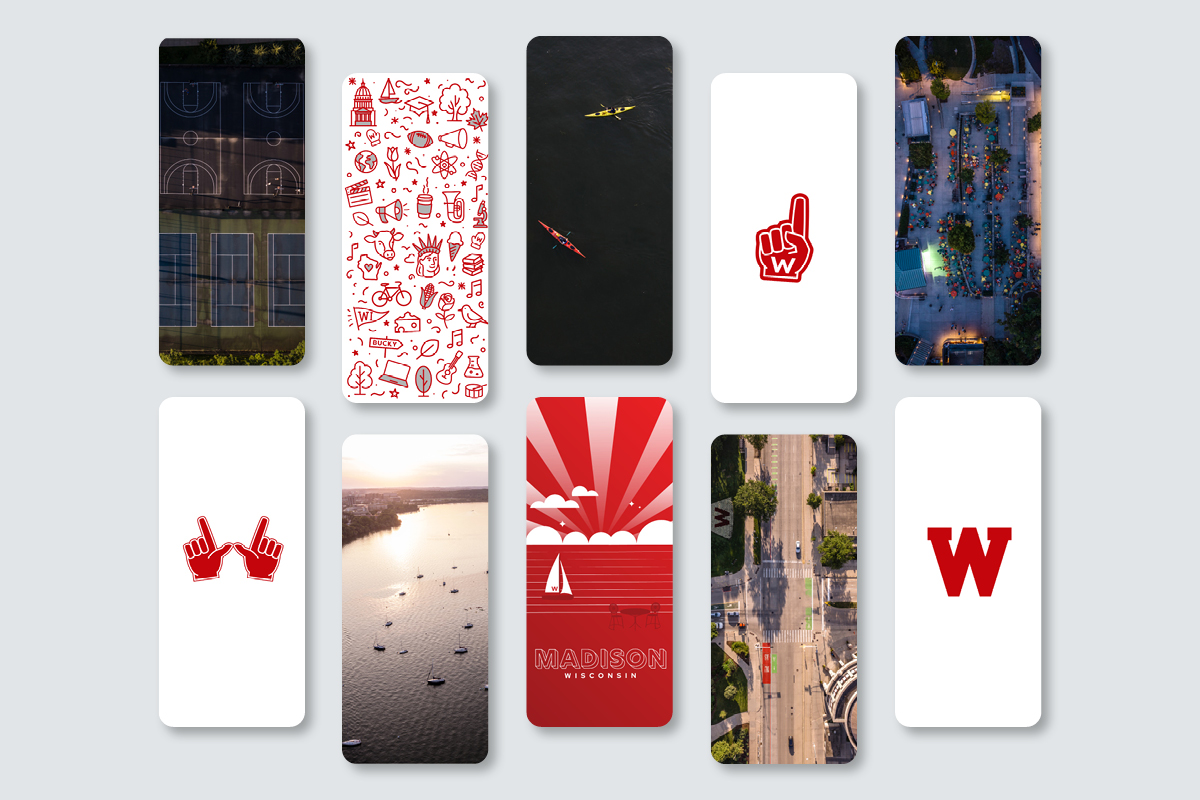
Box folder containing images in JPG format
How to use phone and tablet wallpapers
Download the wallpaper
- On your phone or tablet, open the Box folder and select the wallpaper you want.
- Download the image and save it to your photo library or gallery.
- If the image saves to Files or Downloads, open it and choose Save Image or Save to Photos.
iPhone or iPad
- Open Settings and select Wallpaper.
- Tap Add New Wallpaper, then select Photos.
- Choose the wallpaper you downloaded.
- Tap Add.
- Choose Set as Wallpaper Pair to use it on both screens, or Customize Home Screen to set a different Home Screen wallpaper.
Android phone or tablet
- Touch and hold an empty area on your Home Screen, then select Wallpaper and style.
- Tap Change wallpaper or More wallpapers.
- Open your gallery, then select the wallpaper you downloaded.
- Choose whether to use it on your Home Screen, Lock Screen, or both.
- Adjust and preview the image, then tap Done.
Menu names and steps may vary depending on your device.
Related resources





See all resources tagged with: