Brand Elements Usage Guide
Designed in a distinctly UW–Madison style, this collection brings clarity and character to whatever you’re creating. Use the guidance below to choose the correct files for print, websites, and other digital projects.
Icons
Icons are simple graphics that represent concepts, actions, or themes. They provide visual cues that help communicate ideas quickly and clearly.
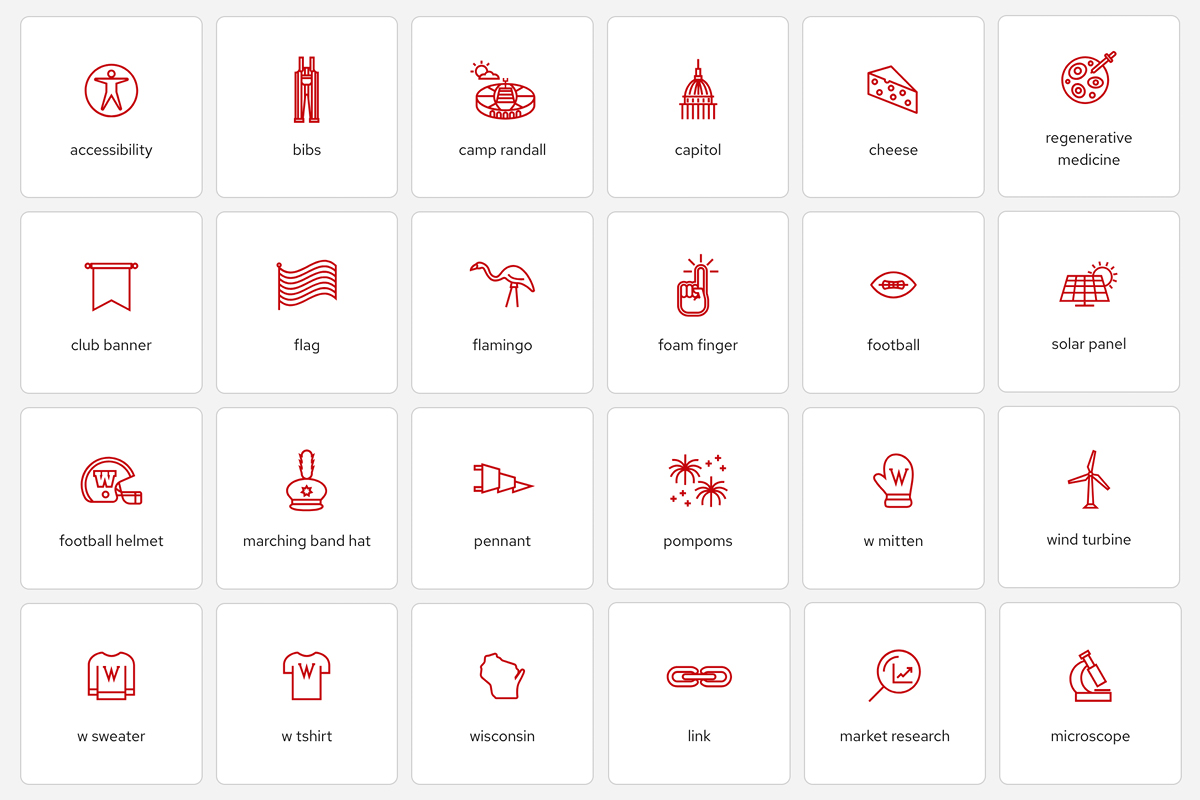
How to choose the right icon resource
How you access UW icons depends on where you plan to use them.
Print and digital projects
Use the UW Icon Library to browse, search, and download approved brand icons. Select the print or digital version that matches your project. Digital projects include graphics for social media, PowerPoint presentations, Google Slides and Docs, digital displays, video intros and outros, and email. Visit the Brand Elements FAQ for help selecting the right file format.
Websites
For WordPress websites, add icons with the UW Icon block instead of downloading them from the UW Icon Library. The block is automatically available on WiscWeb sites. To access it on sites hosted elsewhere, install and activate the UW Icons WordPress Library plugin. Learn how to access and use the UW Icon block.
Best practices for use of icons
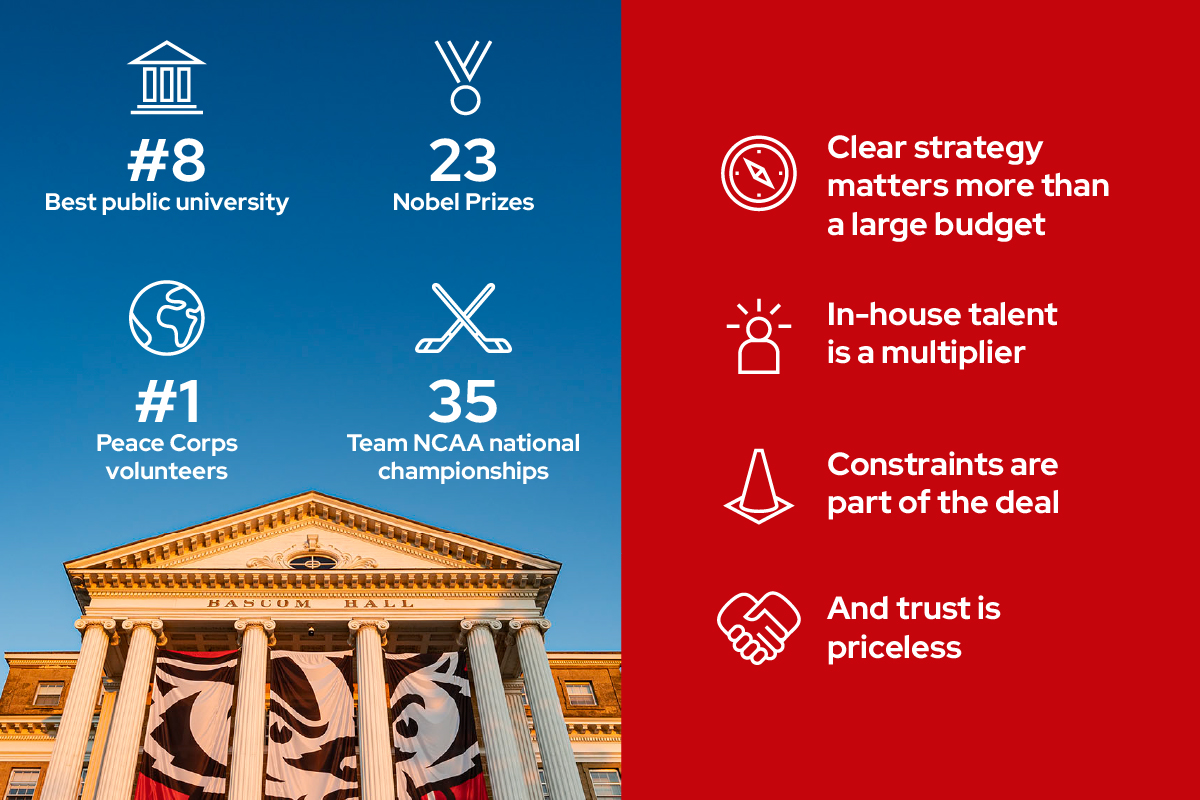
Dos
- Use icons to highlight ideas.
- Pair icons with content. They supplement content and provide visual cues, but are not intended to stand alone.
- Use icons to amplify statistics or facts.
- Scale icons proportionally to each other on the material.
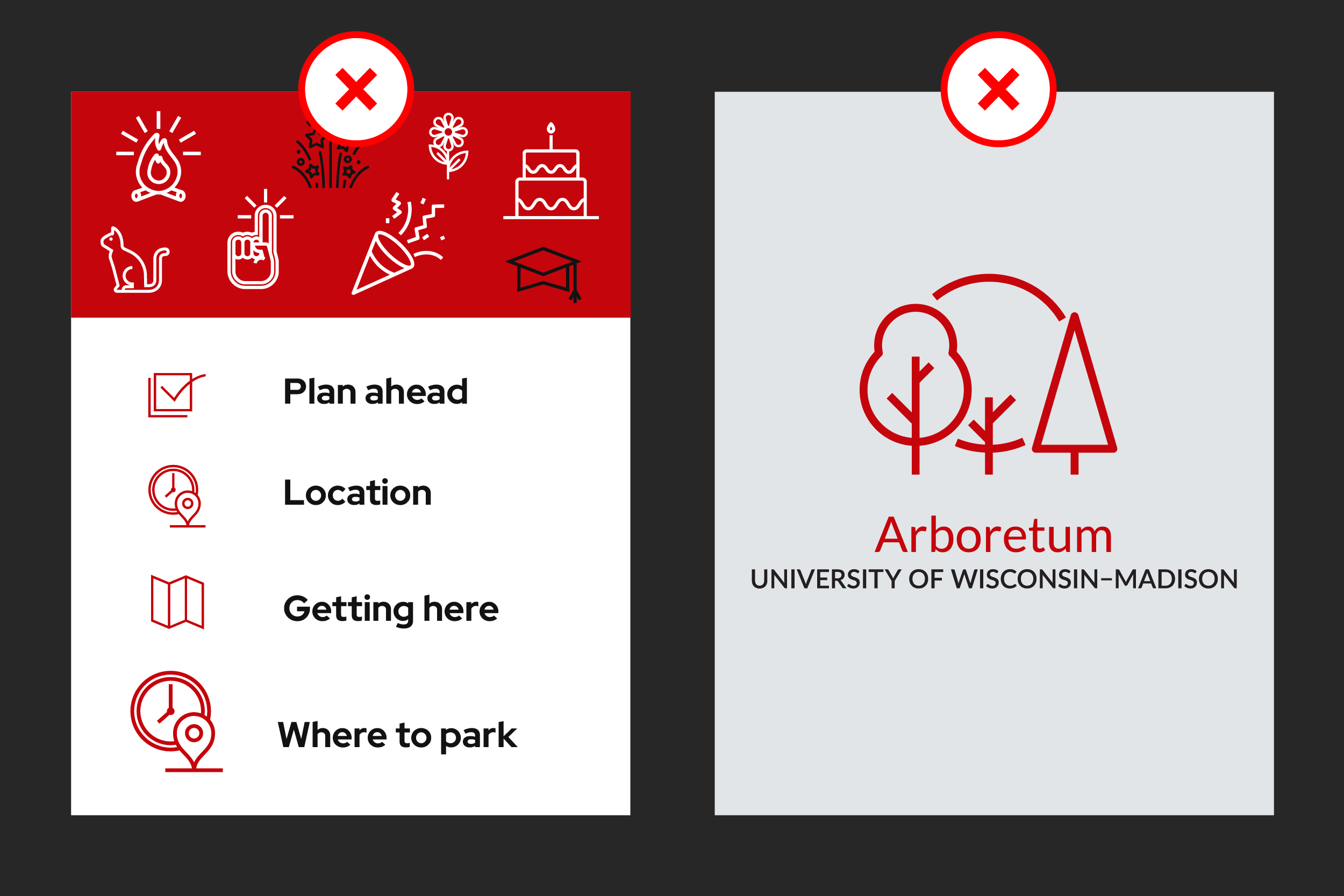
Don’ts
- Do not repeat the same icon to represent different ideas.
- Avoid using icons for decoration.
- Do not combine icons with logos.
- Do not use icons to represent a university unit.
- Avoid variation in icon sizes.
File formats for icons
Print:
- .ai (Adobe Illustrator)
Digital:
- .svg (Scalable Vector Graphics)
- .ai (Adobe Illustrator)
- .png (Portable Network Graphics)
Graphic elements
Graphic elements and textures add depth and character to designs. Use them on their own, together, or with photography to bring the UW brand to life.
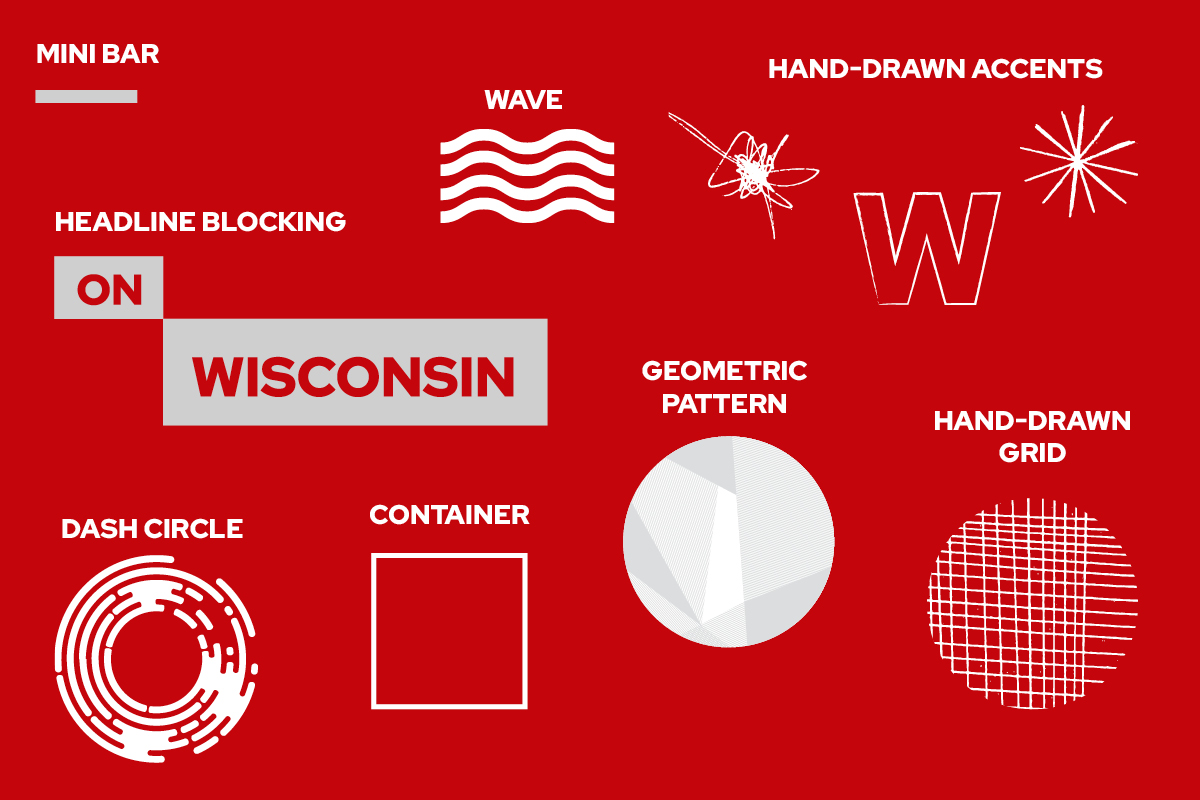
Graphic element usage examples

Textured backgrounds
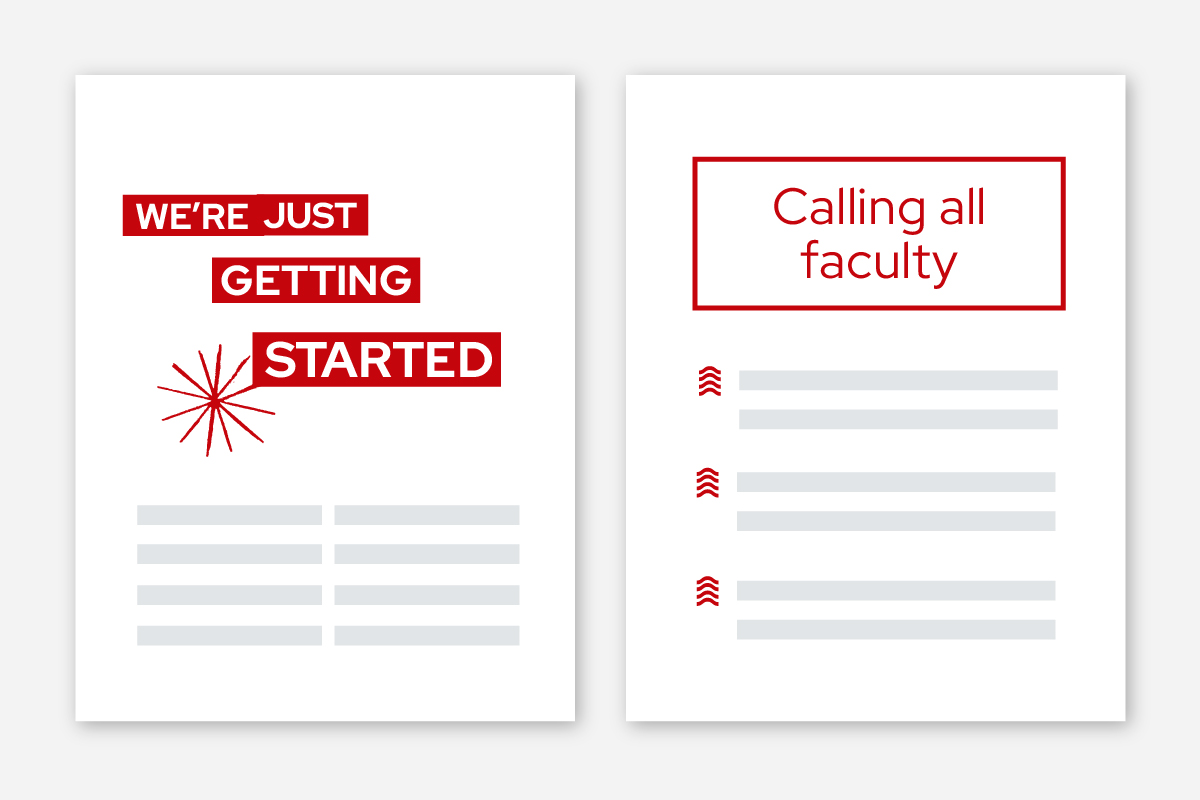
Create visual interest and unity by using brand textures as background elements in your marketing and communication materials.
Emphasis and hierarchy
Help your audience quickly understand your message by using graphic elements to create emphasis and hierarchy.

Set the tone
Use graphic elements to reach your audiences and establish connection with the UW–Madison brand.
File formats for graphic elements
Print:
- .ai (Adobe Illustrator)
Digital:
- .ai (Adobe Illustrator)
- .png (Portable Network Graphics)
Illustrations
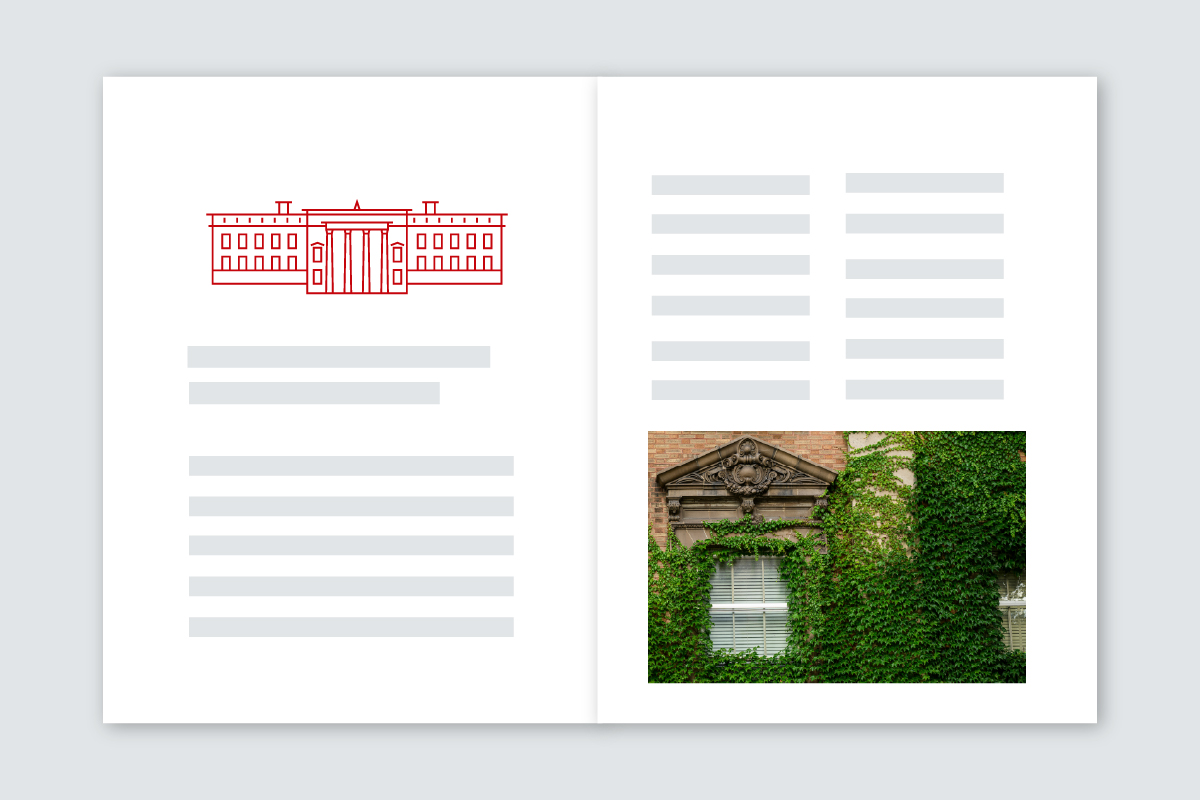
Our illustrations of campus buildings and beloved university symbols use the same visual style as our icons, but are more detailed and can stand alone.

Illustration usage examples

Create a sense of place
Use illustration with photography to help your audiences establish a sense of place.
Enhance storytelling
Illustrations illuminate editorial layouts and bring life and character to stories.

Instill pride
Use branded illustrations to give your audiences a feeling of place and pride.
File formats for illustrations
Print:
- .ai (Adobe Illustrator)
Digital:
- ai (Adobe Illustrator)
- .png (Portable Network Graphics)
Brand elements FAQ
The digital files have been created in RGB color mode, which is specifically used for websites, social media, presentations, and other projects viewed on a digital screen. The files are also set to a resolution of 72 PPI, which is typical for digital spaces and keeps file sizes small.
On the other hand, the print files have been created in CMYK color mode at a resolution of 300 DPI, which is optimal for print projects.
Using a print file set up in CMYK for a digital project will produce unexpected/unwanted colors on screen. Doing the opposite and using RGB/72 PPI files meant for digital spaces for print projects will cause graphics to look blurry or fuzzy in print because they are low resolution. You will also get unexpected colors back from the printer.
First, ask yourself whether your project will be printed or whether it will be viewed on a screen. If it will be printed, choose the designated .ai (Adobe Illustrator) print files. For projects viewed on a screen, select the digitally optimized .ai, .svg (Scalable Vector Graphics), or .png (Portable Network Graphics) files.
Below is an explanation of the differences between file types:
.ai (Adobe Illustrator)
- Can only be opened with Adobe Illustrator or, if saved back to older versions, can be opened in FreeHand or CorelDRAW
- Can have a transparent background
- Is vector-based, so can be resized to any dimension without losing image quality
Using digital files in Adobe
The Illustrator files for digital have all of the capabilities described above, but they are set to RGB/72 PPI. These files can be pulled into other Adobe software to create graphics for digital spaces. For example, if you are using Photoshop to create social media graphics and you’d like to add brand elements to your work, you can import Illustrator files into Photoshop and scale them without losing quality. Then you could export the file to a format that is web-compatible.
.svg (Scalable Vector Graphics)
- Often used for graphics on websites and in other digital projects (Note: SVG uploads are not currently supported in WiscWeb)
- Smaller file sizes than raster files
- Can have a transparent background
- Is vector-based, so can be resized to any dimension without losing image quality
- If your application supports SVG files, we recommend using SVG instead of PNG
.png (Portable Network Graphics)
- Often used for graphics in web and screen projects
- Can be opened with many programs
- Can have a transparent background
- Will lose image quality if resized to a larger size
- Is in the RGB color space, so should not be used for print projects
- Use PNG when SVG is not supported
Using brand elements for digital projects
Digital brand elements including icons, illustrations, and graphic elements can be used for:
- Graphics for social media
- PowerPoint presentations
- Digital displays (TV monitors)
- Video intros/outros
- Google Slides/Docs
Using brand elements on the web
Please do not use digital illustrations and graphic elements on your website. UW icons can be used on WordPress websites, but must be added through the UW Icon block rather than downloaded from the UW Icon Library. The block is available on all WiscWeb sites through the UW Icons WordPress Library plugin, with ready-made patterns to help you get started.
RGB
- RGB color mode is used for web, video, or other on-screen projects.
- The acronym represents the three colors of light displayed on screens (Red, Green, and Blue).
CMYK
- CMYK color mode is used when working on projects that will be printed.
- The acronym represents the four colors used in a printing press (Cyan, Magenta, Yellow, and Key/black).
Resolution
- Resolution refers to the number of dots per inch (DPI) or pixels per inch (PPI) in an image.
- Images for the web are usually low resolution (e.g., 72 PPI). Images for print should be saved at a higher resolution (e.g., 300 DPI).
Downloads
Print and digital icons are available in the UW Icon Library, while graphic elements and illustrations for print and digital use are available in Box. Use the links below to get started.
Graphic elements
Illustrations
Made by people. Our brand uses original artwork created for UW–Madison by humans, not generated using artificial intelligence.