Introducing the UW Icon Library and UW Icon Block for WordPress
Our collection of UW–Madison brand icons just got easier to find and use. We’re excited to introduce the UW Icon Library for print and digital projects and the UW Icon block for WordPress websites.
UW Icon Library
You asked for an easier way to find icons in our 2026 On Brand user survey. The new library replaces searching through Box folders with one searchable collection. Browse and download icons in SVG, PNG, and Adobe Illustrator formats.
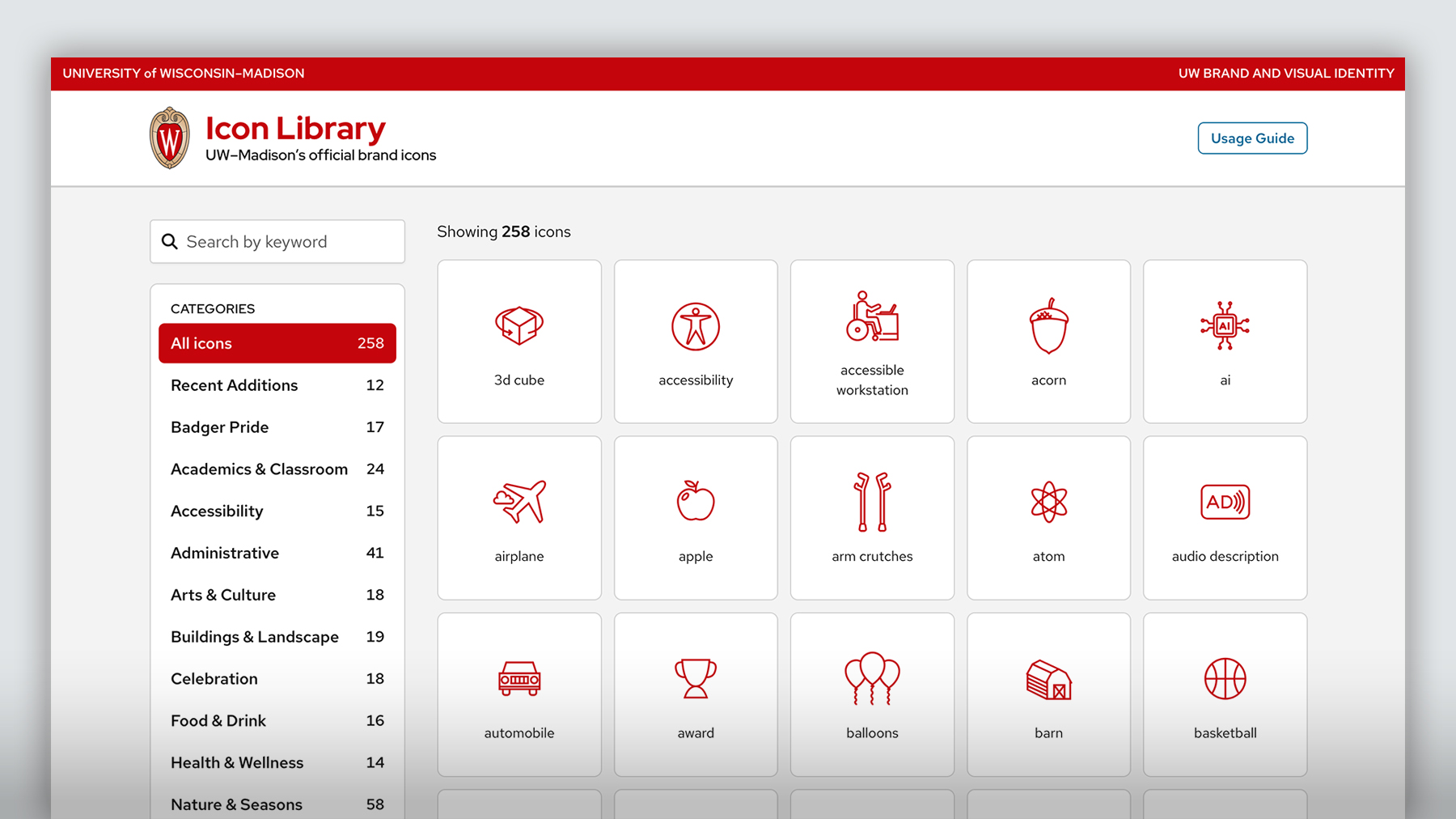
Note: For WordPress websites, use the UW Icon plugin rather than downloading icons from the library.
UW Icon block for WordPress
The UW Icon block brings the branded icon collection directly to your WordPress website. The block is optimized for UW Theme 2.0 but can also be used with other WordPress themes. Editors can choose individual icons or start with ready-made icon patterns. Use these options instead of uploading icons as image files.
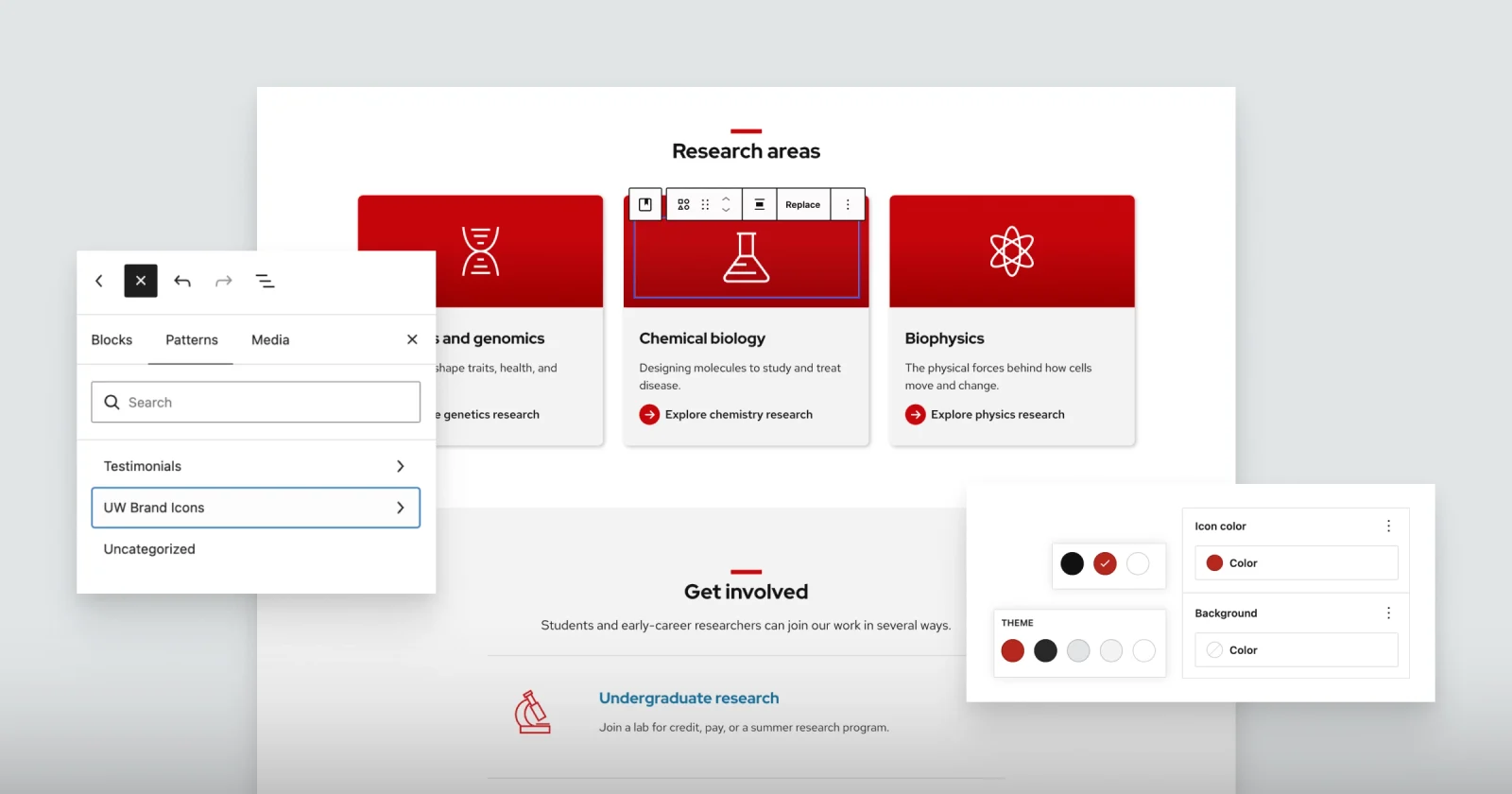
Note: The Icon block, icon patterns, and UW icons themselves are enabled via the UW Icon plugin.
Learn how to use the block
Find instructions for adding icons and designing effective icon layouts.
Access the block
Depending on where your WordPress site is hosted, there are different ways to access the block.
WiscWeb hosted sites
The Icon block is available automatically for sites hosted in the WiscWeb WordPress Service. No additional setup needed.
Sites outside WiscWeb
You must download and activate the UW Icons WordPress Library plugin from the UW Theme 2.0 download page in order to use the Icon block with the collection of UW icons.